Security Risks When Extensions and Internal Formats Differ
Receiving electronic documents like invoices, press releases, or contracts via KakaoTalk PC or email is a standard routine for office workers in Korea. However, double-clicking a file attachment named estimate.pdf or notice.hwp can sometimes cause your computer screen to flicker or lock up completely.
This security nightmare happens because of a mismatched file extension. Cybercriminals frequently disguise malicious executable programs (.exe, .scr, .bat) as harmless office documents (.pdf, .hwp). Because default operating system settings conceal the true extension, users are tricked into manually launching ransomware or trojans.
This guide explains how double-extension attacks exploit default Windows settings, shows you how to safely inspect raw file signatures using Windows Notepad, and provides a simple guide to unhide full file extensions.
The double extension trap: Why Windows default settings hide malware
A mismatched file extension is not a technical rendering glitch. It is a deliberate social engineering tactic that exploits operating system defaults.
The Windows "Hide extensions" vulnerability
By default, Windows 10 and 11 enable a setting called "Hide extensions for known file types" (알려진 파일 형식의 확장명 숨기기). This setting hides trailing extensions like .exe, .pdf, or .png from view.
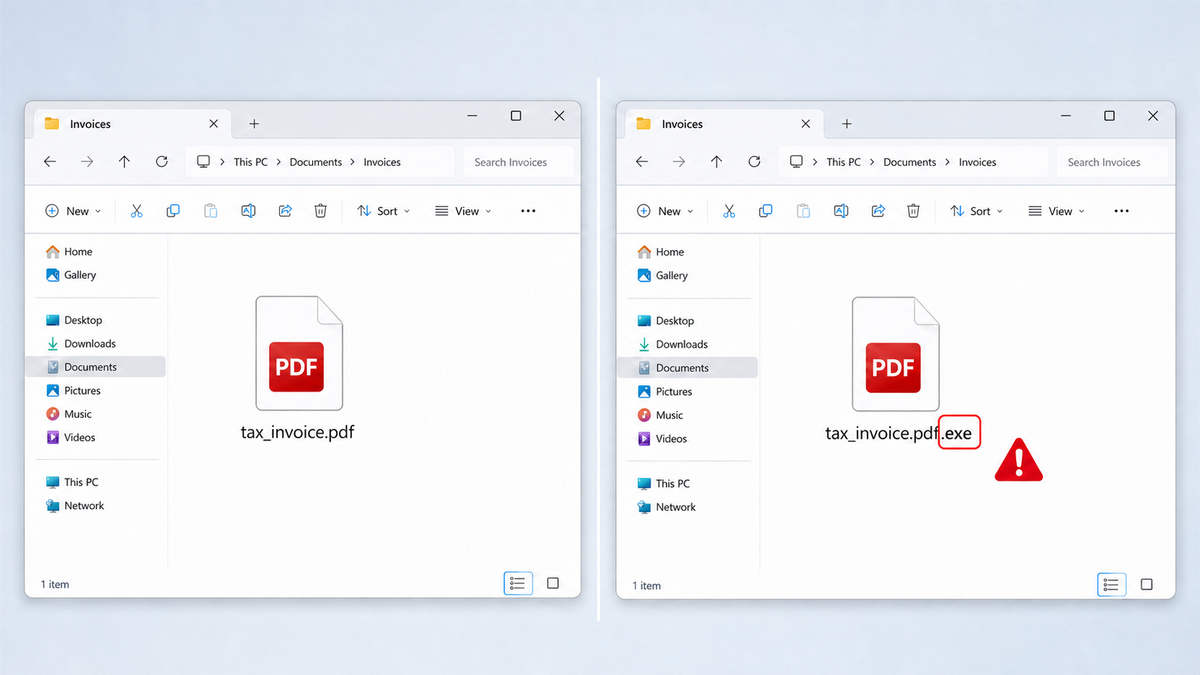
Hackers exploit this default setting by naming a malicious program tax_invoice.pdf.exe. Because Windows automatically hides the final .exe portion, the file appears on your desktop simply as tax_invoice.pdf, complete with a fake PDF icon.
KakaoTalk PC document phishing
In Korea, business file transfers frequently take place over KakaoTalk PC (카카오톡 PC) or Naver Mail. Attackers target company employees by sending files named estimate.hwp.exe or contract.pdf.exe. Unaware that the file is an executable program, users double-click the attachment, instantly triggering a background malware infection before Hancom Office or Adobe Reader ever opens.
Inspecting Magic Bytes in Notepad: How to check file headers safely
You do not need specialized antivirus software to check whether a document is actually an executable file in disguise. You can safely inspect a file's raw internal header using Windows Notepad (메모장).
Opening suspicious documents safely inside Windows Notepad
When you open an executable file by double-clicking it, Windows executes the embedded code. However, opening that same file inside a plain text editor reads the raw binary data as plain characters without executing any code.
To inspect a file safely, right-click the suspicious document, select "Open with," and choose Windows Notepad (메모장).
Identifying the MZ executable code signature versus document headers
Every file format begins with a unique set of starting characters known as "Magic Bytes" or file signatures:
- Windows Executable files (.exe, .scr, .dll): Always begin with the letters MZ at the very top-left corner of the file.
- PDF Documents (.pdf): Always begin with the characters %PDF.
- Hancom Office Documents (.hwp / .hwpx): Always begin with D0 CF 11 E0 or PK.
If you open a file labeled statement.pdf or report.hwp in Notepad and see MZ as its very first two characters, the file is a disguised Windows executable program. Delete it immediately.
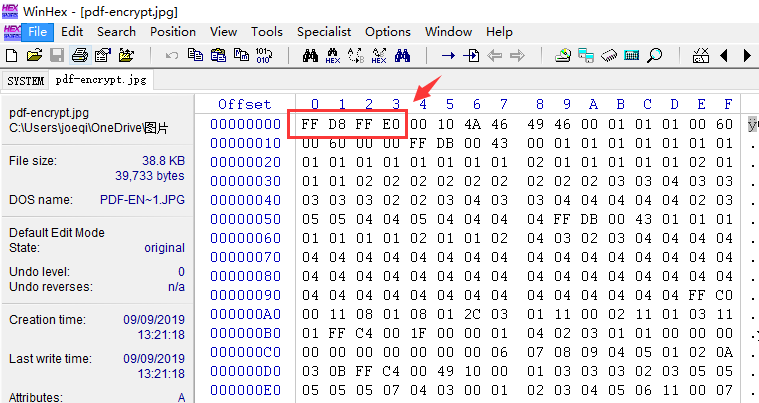
File signature cheat sheet: Displayed extension vs actual internal header
Use this reference cheat sheet to compare displayed file extensions against their genuine internal Magic Bytes:
As shown in the table, if ANY document or image header begins with MZ, it is a disguised executable file designed to run code on your system.
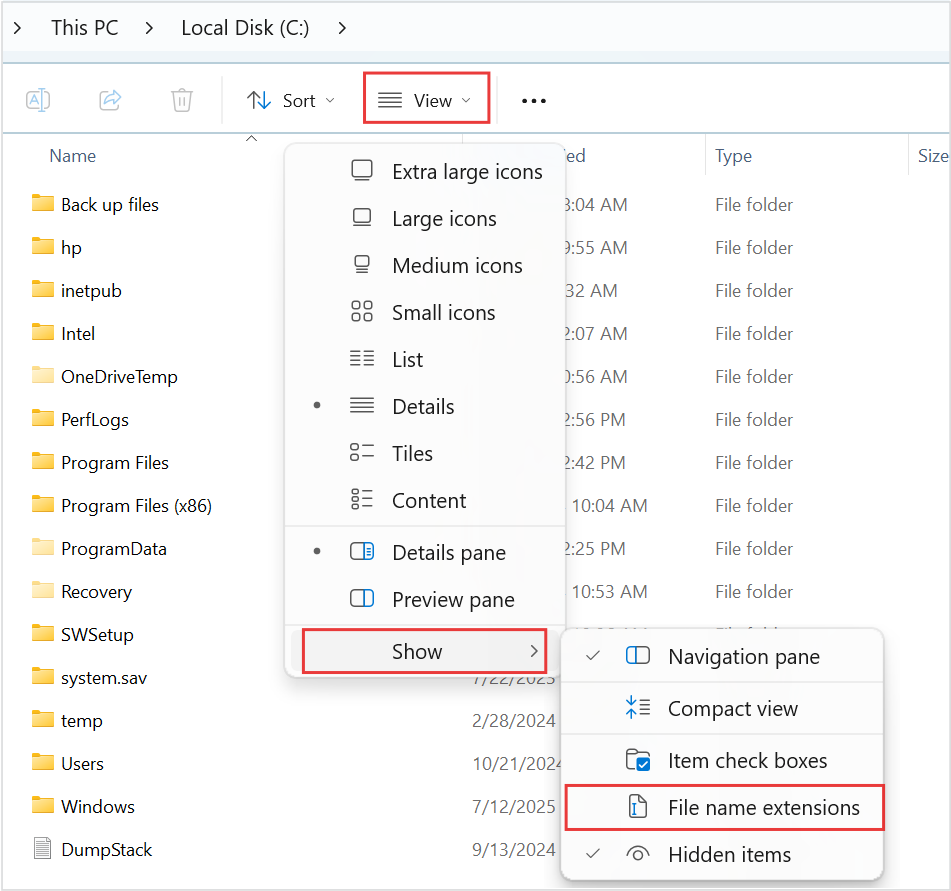
How to configure Windows File Explorer to always show full file extensions
The single most effective defense against double-extension attacks is configuring Windows File Explorer to display full file extensions permanently.
Follow these three steps on Windows 10 or 11:
- Open folder options: Open Windows File Explorer (파일 탐색기), click the "View" tab (or three dots menu on Windows 11), and select "Options" (옵션).
- Uncheck the extension hiding box: In the Folder Options window, click the "View" (보기) tab. Scroll down the advanced settings list to find "Hide extensions for known file types" (알려진 파일 형식의 확장명 숨기기). Uncheck this box.
- Apply settings: Click "Apply" and then "OK."
Once this setting is disabled, fake files like invoice.pdf.exe will immediately reveal their full .exe extension on your desktop, exposing the trap before you double-click.